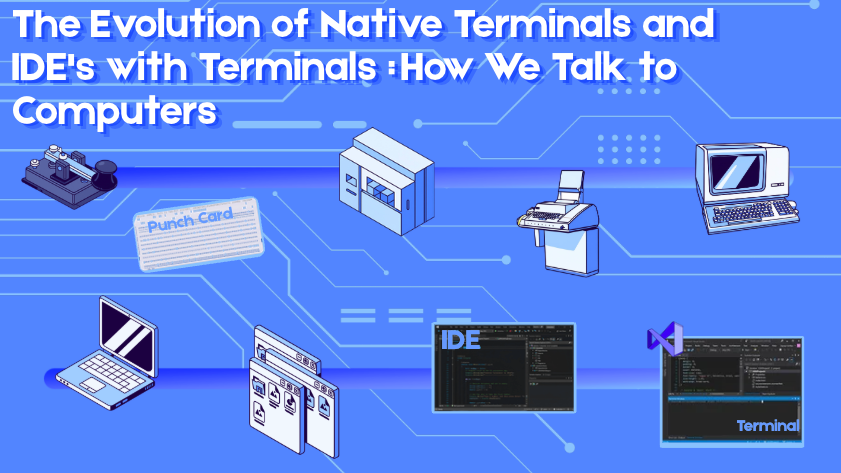
The Evolution of Native Terminals and IDE's with Terminals: How We Talk to Computers
Full article
Before Computer Terminals and IDE's (Integrated Development Environment)
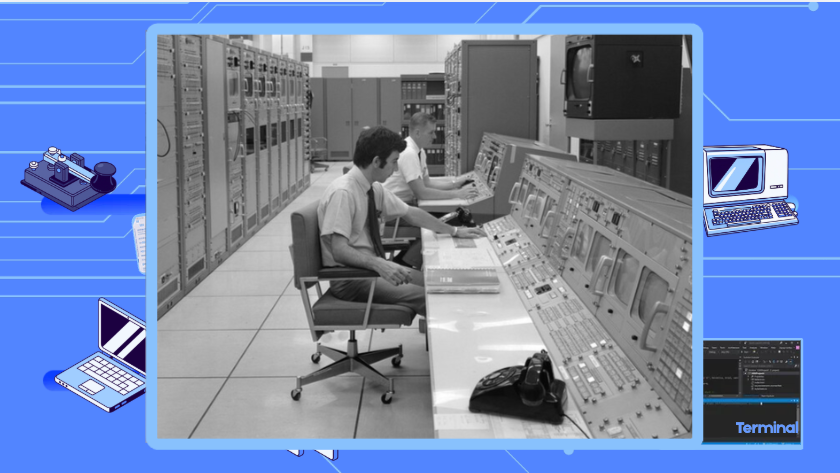
In the 1960s, computers were enormous, extremely expensive machines (like room-sized refrigerators that cost millions in today’s money). Only big organizations like universities, governments, and large companies could afford them. NASA had the entire first floor of the historic Mission Control Center (Building 30 at the NASA Johnson Space Center) in Houston dedicated to a single massive computer setup called the Real Time Computer Complex (RTCC).
Why Were Native Terminals Invented?
The main reason was to solve a big problem: How can multiple people use the same giant computer at the same time?
Before terminals:
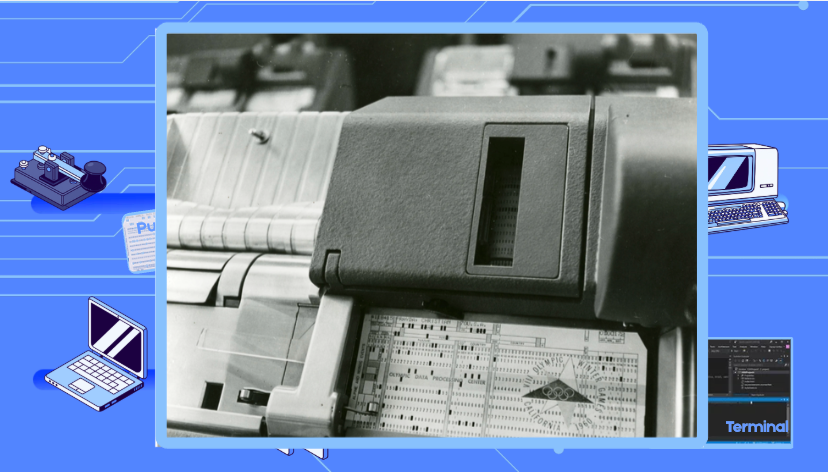
- People had to submit jobs on punch cards or paper tape (like feeding a stack of instructions into the machine).
- They waited hours or even a full day to get results back.
- Only one person could really use the computer at a time. It was very inefficient and slow.
The big invention in the early 1960s was time-sharing — letting many people share one powerful computer interactively.
Native terminals (then mostly modified teleprinters/typewriters connected by wires or phone lines) were created so:
- Multiple users could type commands and get immediate responses from the shared computer.
- Researchers, scientists, and students could work on the computer right now, instead of waiting in line.
- The expensive main computer could be used much more efficiently — it quickly switched between users (like multitasking).
Key Milestones For Computer Terminal Windows
1960's
The Compatible Time-Sharing System (CTSS) at MIT in 1961 was one of the first systems that made this practical. People could log in from terminals and use the computer together.
This was a huge leap because it made computing interactive and shared — the foundation for modern programming, the internet, and tools like the terminals we still use today.
1970's
By the 1970s, they became common with Unix and devices like the Teletype aka teleprinter, teletypewriter, or TTY which was originally used to replace morse code writers with typists to provide a faster way to communicate and then was later adapted to connect to computers. They would print out the responses from a computer on paper.
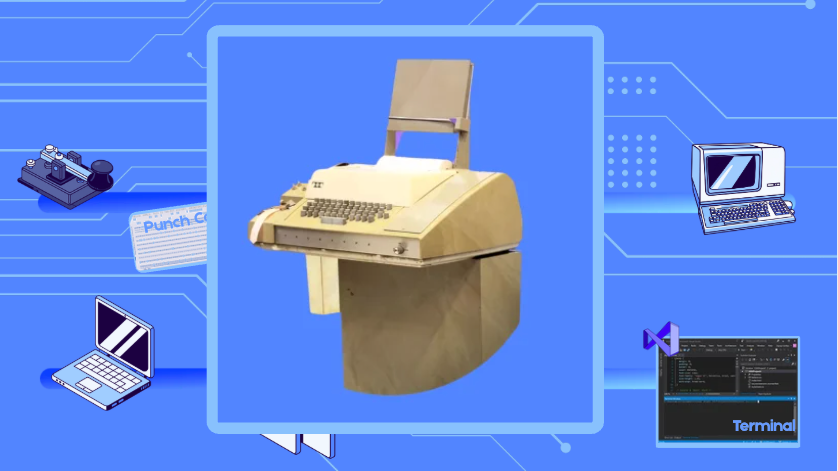
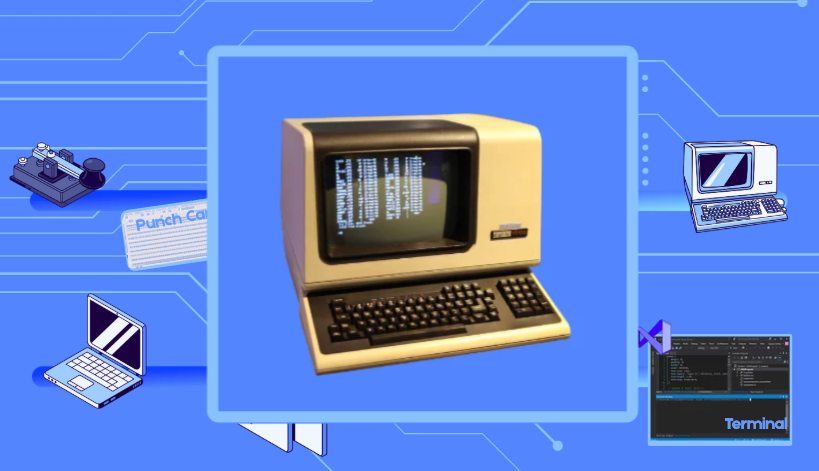
Shortly after came screen-based terminals, like the VT100 in 1978, which displayed the responses from a computer on a screen. Released in August 1978 by Digital Equipment Corporation (DEC), the VT100 was a revolutionary video terminal that changed computing.
It was one of the first mass-produced terminals to use a microprocessor (the Intel 8080) and embrace the ANSI X3.64 standard. This made it a highly sought-after, interchangeable "chameleon" across various computing environments. Its robust command set defined how modern computers and servers handle text, rendering, and remote connections. However, it didn't have any internal storage or memory. It still required a physical connection to a larger mainframe or minicomputer (like the DEC PDP-11 or VAX) to actually do work.
1980's
In the 1980's, the MS-DOS was the dominant operating system of the personal computer revolution. Originally purchased as a quick software fix, it became a massive commercial juggernaut that captured over 80% of the PC market by the end of the decade and propelled Microsoft from a tiny startup into a tech superpower.
In 1980, tech giant IBM was secretly building its first personal computer (the IBM PC). They desperately needed an operating system but failed to reach a deal with the industry leader, Digital Research. IBM turned to Bill Gates and Microsoft. Microsoft didn’t actually have an operating system, so they quickly bought the rights to a program called 86-DOS (originally nicknamed QDOS, or "Quick and Dirty Operating System") from Seattle Computer Products for around $50,000. Microsoft adapted it, renamed it MS-DOS, and delivered it to IBM for its August 1981 launch.
Unlike today's visual software, MS-DOS was a text-only Command Line Interface (CLI). There were no windows, no icons, no graphical folders, and no computer mouse.
- The Prompt: Users were greeted by a stark black screen and a blinking prompt:
C:\>. - Commands: To do anything, you had to type exact text commands, such as
dirto see files,cdto change directories, orcopyto move data. - Limitations: It was strictly a single-tasking operating system—it could only run one software application at a time. File names were famously restricted to an 8-character limit plus a 3-character extension (e.g.,
DOCUMENT.TXT).
Native terminals have been around for over 60 years and are basically the original way to directly control a computer with text.
Why Were IDE's (Integrated Development Environment) Invented
Integrated Development Environments (IDEs) were invented so that all the main tools that a programmers needs would be on one place. This made programming much more efficient.
In the early days of programming (especially before the 1980s), developers had to use separate tools for everything:
- A basic text editor to write code
- A separate compiler (run from the command line) to turn the code into a program for the computer to understand and run
- Another tool for debugging (finding errors)
- More tools for building, testing, and managing files
This meant constantly switching between programs, typing long commands, and manually fixing issues. It was slow, error-prone, and frustrating — especially as programs got bigger and more complex.
IDEs allow you to have one place to write code → immediately run it in the bottom panel → see errors that you can click to jump straight to the problem. They include advance logic for automatic code suggestions, testing, and better debugging before you submit any code changes to the main code branch.
1960's | The Early Days
The earliest “integrated” programming environments appeared in the 1960s:
- Dartmouth BASIC (1960s): One of the first systems that let you write and run code interactively on a shared university computer. It felt integrated because you could edit and run programs without leaving the terminal. However, its limitation was that it ran on big, expensive time-sharing mainframes. Most people (especially hobbyists and students with personal computers in the 1980s) couldn’t access it. The interface was very basic (teletype printers, line numbers, slow interaction).
- Lisp and Smalltalk (late 1960s–1970s): These had incredibly advanced environments — especially on expensive research machines (Lisp Machines or Xerox PARC computers). Smalltalk even had graphical interface. You could edit code while the program was running, inspect live objects, and have a very fluid, interactive experience. It's limitations was also that they were mostly confined to wealthy universities and research labs. The hardware was extremely expensive and they weren’t practical for everyday personal computers.
1983 | Made For Everyone
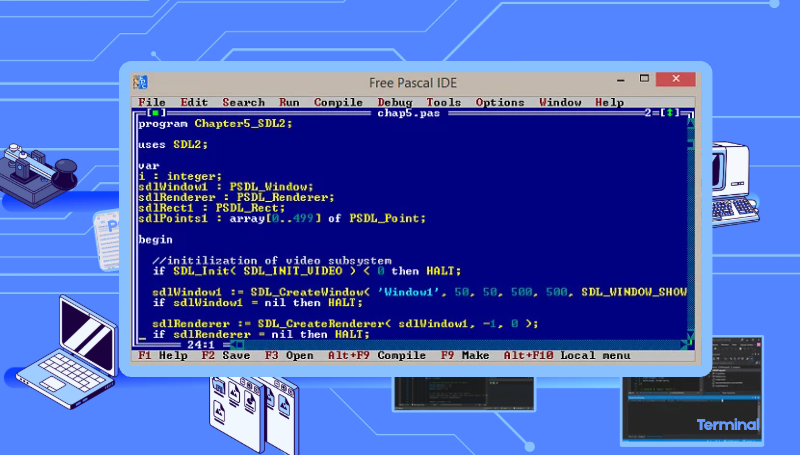
Borland Turbo Pascal is widely considered the first truly popular, practical IDE that changed programming for the masses. While Turbo Pascal didn’t invent the idea of an integrated environment, it made the concept practical, affordable, and widely available for regular programmers on everyday PCs. Here’s why it felt like a huge leap:
- It ran on cheap personal computers (IBM PC and compatibles)
Unlike the earlier systems that needed big shared university machines or exotic expensive hardware, Turbo Pascal worked on the small, affordable computers that normal people and students were buying in the 1980s. - Extremely tight and fast integration
- Everything (editor, compiler, and runner) was in one single small program.
- You could press a key to compile and run instantly. Compilation was lightning-fast because it kept everything in memory and used smart techniques.
- If there was an error, it jumped you straight to the exact line in the editor with a clear message. No switching tools or digging through separate error logs.
- Fast edit → compile → run loop
Before Turbo Pascal, even on personal computers, you often had to:
- Edit code in one program
- Exit and run a separate compiler
- Run another tool to link things
- Then test the program
Turbo Pascal made this cycle feel almost instant. This was revolutionary for productivity on ordinary hardware.
Why These Early IDEs Were So Useful
They solved the biggest pain points of the time:
- Reduced context switching between different tools
- Made finding and fixing errors much faster
- Lowered the barrier for new programmers (students, hobbyists)
- Dramatically increased productivity — developers could write, test, and improve code much more quickly
The Transition to Computers with Graphical User Interfaces and Modern IDE's
By the end of the 1980s, Microsoft began laying the groundwork to replace the command line with a graphical interface. When Windows 1.0, 2.0, and 3.0 first launched, they weren't separate operating systems—they were just graphical "skins" that you had to launch by typing win into the MS-DOS prompt.
This transition fundamentally bridged the gap between command line and visual code editing, directly paving the way for Integrated Development Environments (IDEs) with built-in terminals.
X Terminals & Bitmapped Workstations
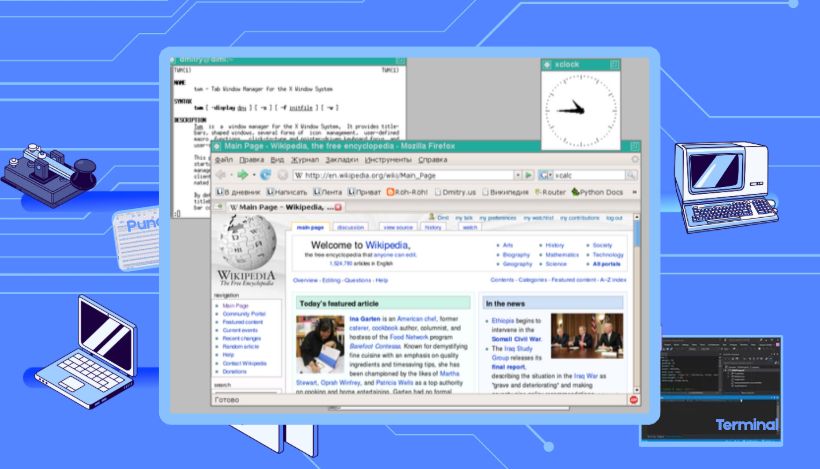
While the VT100 displayed rigid grids of text characters (bright green text on a black background), the mid-1980s introduced bitmapped displays. Instead of rendering text character-by-character, the computer could control every individual pixel on the screen. For example, a bitmap graphic is an image formed from rows of different colored pixels that together display a picture on the computer screen. This technological leap birthed graphical user interfaces (GUI) and,
- The X Window System (1984): Developed at MIT, this network protocol allowed a single graphical monitor/interface to display multiple, independent application windows at the same time. It could display graphics like buttons to click, varying text fonts, and multiple terminal windows simultaneously on a single physical screen. Engineers could now run a text editor in one window and execute compiler commands in a second window right next to it.
Modern IDE's
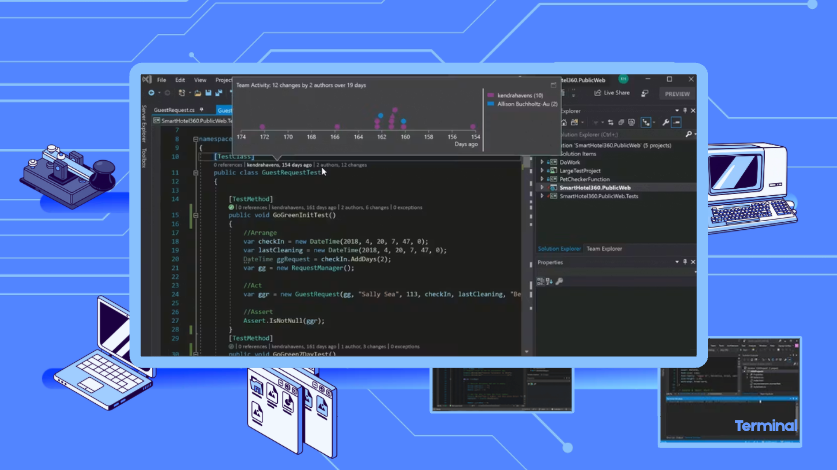
1. Visual Studio Code (VS Code) – The undisputed king
- Popularity: Used by ~73–76% of developers (Stack Overflow Survey 2025). It has dominated for years.
- Best for: Almost everything — web development, Python, JavaScript, TypeScript, Go, Rust, data science, DevOps, etc.
Why it’s so useful:
- Extremely lightweight and fast.
- Massive ecosystem with over 40,000 extensions — you can customize it for anything.
- Excellent built-in terminal, Git integration, debugging, and IntelliSense (smart code suggestions).
- Great AI support (GitHub Copilot and others).
- Free, open-source, and works on Windows, Mac, and Linux.
Simple analogy: It’s like a Swiss Army knife that starts as a simple tool but becomes incredibly powerful with the right attachments.
Others
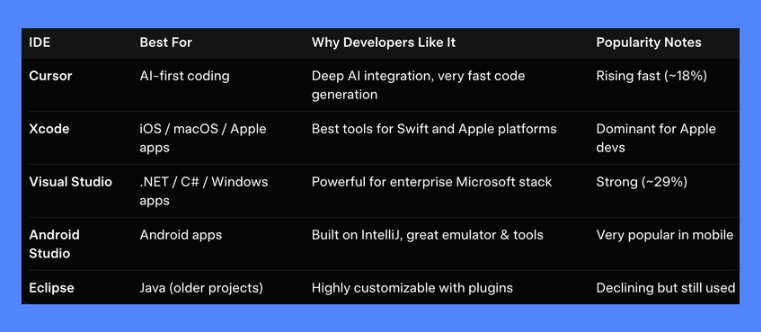
Why these tools are so valuable to developers
Modern IDEs (especially the top ones) dramatically boost productivity by offering:
- Smart code assistance — auto-complete, error detection, and suggestions as you type.
- Built-in debugging — step through code line-by-line to find bugs quickly.
- Version control (Git) — track changes and collaborate easily.
- Terminal & running code — test and run programs without leaving the editor.
- Refactoring tools — safely rename or restructure code across entire projects.
- Extensions / plugins — customize for your exact needs.
- AI features — modern IDEs now help write code, fix bugs, and explain things (huge time-saver).
Why IDE's Added Terminals
For a long time graphical user interfaces (GUI) of IDEs hid the terminal. They replaced command-line compilation with visual "Build" buttons. And while the technological advancements from punch cards, to computer screens, to interacting graphics on a computer screen might seem like that's all what was needed for developers, the need arose for command like terminals to remain an integral part of programming. As software development evolved—especially with the rise of web development, package managers (like npm or pip), and huge cloud infrastructure—developers found themselves constantly alt-tabbing (a keyboard shortcut used to quickly switch between open programs and application windows without using your mouse) away from their IDE back to a separate system terminal window. While IDE's gave them one singular place to write, test, and merge code, it didn't have all the rugged and raw power that command lines in a terminal have.
To solve this friction, modern IDE makers realized they needed to bring the terminal inside the app, so that it really was a one stop shop for code development. They achieved this through a clever piece of software plumbing:
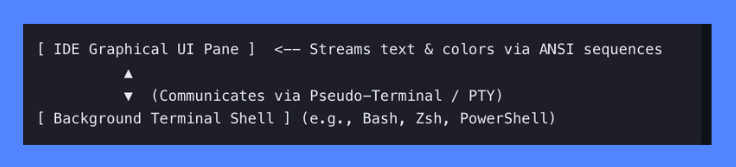
- Pseudo-Terminals (PTYs): Modern operating systems allow a software application to create a "fake" terminal session that runs invisibly in the background.
- The VT100 Connection: When you open the built-in terminal in an IDE like Visual Studio Code or JetBrains IntelliJ, the IDE launches a real command-line program (like Bash or PowerShell) in the background on your computer. While you interact with the IDE, the IDE sends the text output to the terminal using the same old formatting codes that were invented in 1978 for the VT100 terminal.
- The Full Circle: The IDE captures the raw text stream back from the real command line terminal on your computer, interprets the formatting codes (like text colors or cursor movements), and renders it cleanly inside a sub-pane right below your where you write the code in the IDE for you to read.
- To say it simply, when using a terminal in an IDE, the IDE creates a terminal window on your computer and pretends to be an old-school terminal so it can talk to that terminal window using command-line tools — and then displays the results for you to read in the IDE.
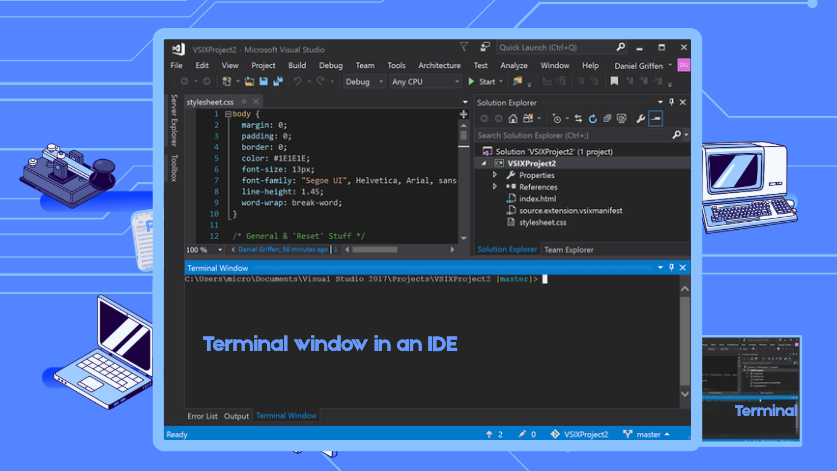
Built-in terminals inside IDEs became popular in the 2010s, with VS Code releasing it in 2015, which made integrated terminals very popular and easy to use. Most modern IDEs include a built-in terminal — this has become a standard feature because developers frequently need to run commands, install packages, use Git, start servers, etc., without switching to a separate terminal window.
Why This Feature Is So Useful
- Run shell commands (npm, pip, git, etc.) without leaving the IDE.
- See program output and logs right next to your code.
- Work with multiple terminals at once (e.g., one for the server, one for testing).
- Keep everything in one window → less context switching.
VS Code and JetBrains IDEs (IntelliJ/PyCharm) are especially praised for how well their terminals work.
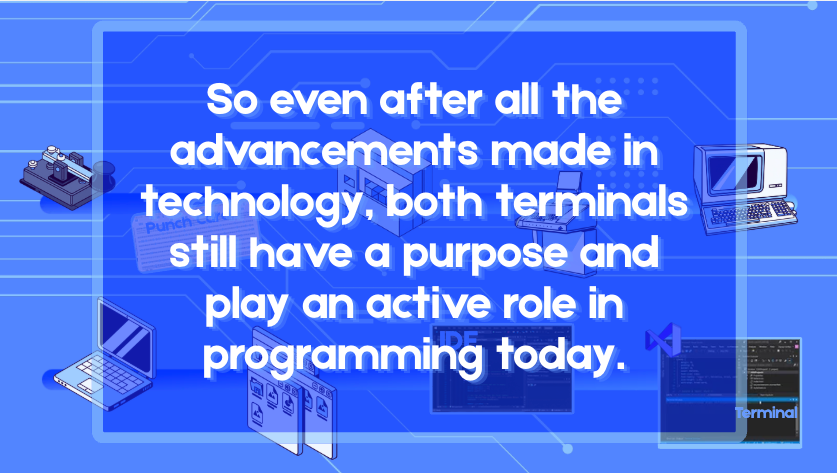
So, while native terminals are old (1960s), IDEs with terminals are relatively new (widespread in the last 10–15 years).
Practical Examples of When to Use Each
Imagine you’re building DuckBuddy, a SaaS product (online software people pay to use) that helps remote workers connect, chat (text, snap/video), and collaborate on projects remotely but together.
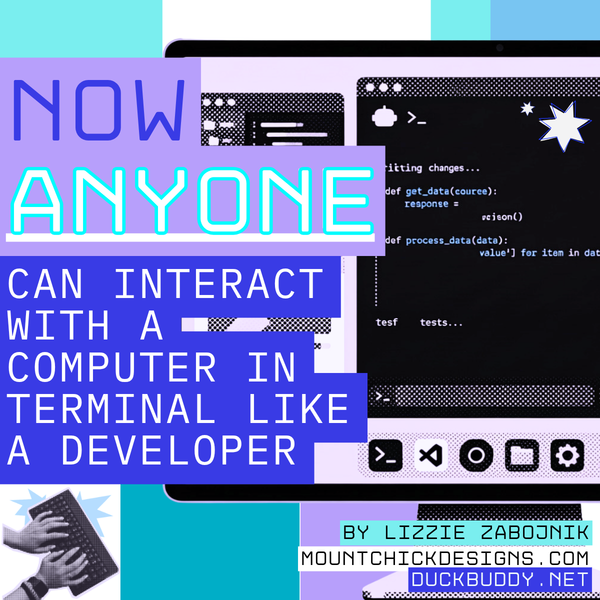
Developers use a terminal (a text command window) to control the “behind the scenes” parts of the app — like starting servers, installing tools, testing features, and deploying the product.
Here’s when and why they would use the terminal inside VS Code (the coding workspace) versus the native terminal (standalone app on their computer).
1. Terminal Inside VS Code (the “The Standard Tool Box”)
This is used for everyday work while building DuckBuddy. Everything stays in one window — very convenient.
Specific Practical Examples for DuckBuddy:
- The developer just finished writing code for the live chat feature. They type one command in the bottom panel (npm run dev) and the app starts running locally so they can instantly test sending messages between two browser windows.
- They need to install a new tool for video chat (e.g., a WebRTC library). They run a command like npm install simple-peer right next to their code files.
- They’re fixing a bug in the file sharing feature. They run tests with one command (npm test) and see which tests fail. Clicking the error jumps them straight to the buggy line of code.
- They start the backend server and frontend at the same time in split panels (multiple "windows") to test how users can share project files while video chatting. Viewing multiple panels in VS code makes it’s easier to switch between related tasks without losing context.
Analogy:
It’s like building a projects with all the tools in your everyday carry tool box. You’re already next to the box working (writing code), so you just turn around and use the hammer for one thing, the screwdriver for another, the measuring tape for another etc. All your standard tools are there for fast and easy access.
2. Native / Standalone Terminal (the “Garage Workshop”)
This is used for bigger, longer, or more serious tasks that go beyond the main coding window.
Specific Practical Examples for DuckBuddy:
- They start a long-running test server or background service (like the real-time chat server using Socket.io) that needs to stay alive for hours while they test on their phone or with teammates. They can close VS Code completely and the server keeps running.
- They’re deploying the finished DuckBuddy app to the internet (e.g., to AWS or Vercel, the server that hosts the website for users). They use powerful commands to push the code, update the live database, and manage cloud servers — often while working on multiple projects at once.
- They connect to the live production server (the real DuckBuddy running on the internet) to check logs when users report a problem with video chat or file sharing. This is done in a separate powerful window with multiple tabs (using tools like tmux).
- They run heavy commands like building the final version of the app for hundreds of users, backing up the database, or setting up Docker containers so the app runs the same way on their computer as it does in the cloud.
- While you can manage multiple things in VC code at the same time, by using separate terminals, you can run completely different environments or connect to different computers at the same time. For example, you can have one terminal window for the database, another for monitoring user activity, and another for security updates.
Analogy:
It’s like going to your backyard garage for a big project. You might be building a full workbench or shed (setting up the entire DuckBuddy system), running loud power tools that run all day (servers and databases), or working on something that needs to stay plugged in even when you leave the garage. It’s more powerful than the tools on in your everyday carry tool box.
Quick Summary for DuckBuddy Development
- VS Code Integrated Terminal → Daily building and testing (chat features, quick fixes, local development). Keeps the developer fast and focused working on bug fixes and features in the product.
- Native Terminal → Serious work (deploying the live app, fixing real user problems, running things 24/7, managing cloud servers).
Most professional developers use both while building a product like DuckBuddy and other softwares— the convenient one inside their coding program for normal days, and the powerful standalone one when things get more complex (like launching the real service that real remote workers will use).
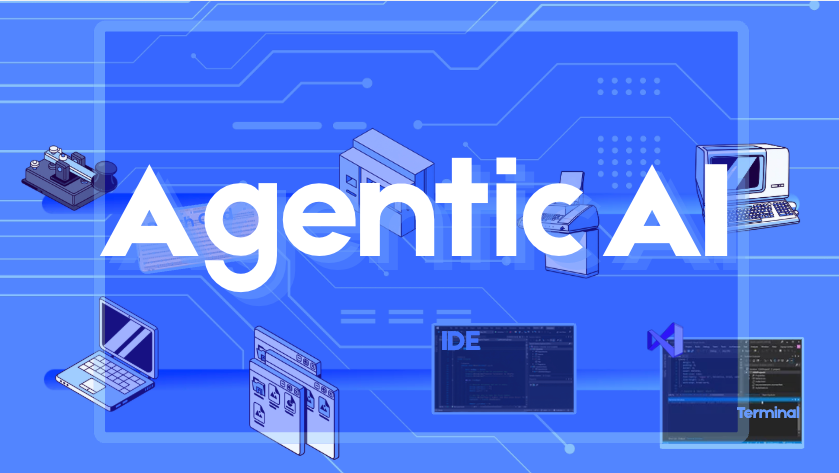
How Agentic AI Plays Into This
Terminal Inside the IDE (e.g. VS Code or Cursor)
The AI works inside the main coding workspace, right next to where the code is displayed.
How Agentic AI Uses It:
- The AI sees the code files visually, makes changes directly in the editor, and runs quick commands in the built-in terminal panel.
- It’s great for interactive, step-by-step work where a human is watching and guiding.
- The AI can show pretty diffs (changes), click around files, and keep everything in one window.
DuckBuddy Examples:
- You tell the AI: “Add video chat to the profile page.” The AI edits the code files inside the IDE, runs a test command in the bottom terminal (npm run dev), sees the output, fixes bugs, and lets you preview it immediately.
- It runs tests and shows clickable errors that jump to the exact line.
Native / Standalone Terminal on the Computer (CLI Agents)
The AI runs in a regular terminal window (or a sandboxed environment), more independently.
How Agentic AI Uses It:
- The AI has full access to the command line, file system, git, databases, cloud tools, etc.
- It’s better for autonomous, long-running, or complex tasks without needing the full IDE open.
- Many modern agentic tools (Claude Code, Gemini CLI, etc.) are designed primarily for the terminal because it gives cleaner, more powerful access to real development tools.
DuckBuddy Examples:
- You tell the AI: “Set up the backend server for live chat and deploy it to the cloud.” The AI works in the native terminal: installs packages, configures databases, runs long tests, pushes code to GitHub, and monitors the live server — even if you close the IDE.
- It connects to remote cloud servers, checks logs when users report file-sharing issues, or runs heavy builds.
- Tools like tmux let the AI (or multiple AIs) keep multiple sessions running in the background.